Configuring items
The first step in configuring your special item in our configurators is to define the required parameters. For easier handling, the modifiable parameters are defined directly in the dimensional drawing.
As the example of our rod electrode with chamfer, copper V 91371 shows, you can select your desired value in the drop-down menu 1. There are also input fields 2 in which you can enter a value within the specified range. The ‘Technical values’ table 3 shows all the important dimensions of the item. Finish the configuration by clicking on button 4.

You will now see the calculated price for your configured item on the right side of the configurator. Please refer to our FAQs on the product detail page. You can change the quantity at any time 5. The details 6 summarise your current item settings. You can make changes to the configured item on the left at any time 7. Then click on button 8 to update the configuration. You can now add your item to the shopping cart 9 or to a parts list 10. Please also refer to our FAQs on the shopping cart and the parts lists.

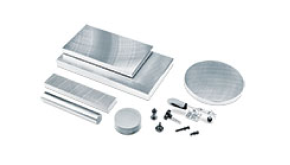
Plate configurator
In step 1, select the category of the plate you would like to configure 1.

Next, enter the desired plate dimensions and select the appropriate material 2 with the help of our material selection wizard 3.

Then select the desired plate variation 4. The graphics and descriptions help you identify the different variations 5. Some options may not be selectable because of your settings in the previous steps. The table also shows the maximum values for the variations 6. If you need a plate variation that is currently not selectable, you can revert to the previous steps at all times to modify your settings. Having completed this step, you can already finish the configuration using the corresponding button 7. If you want to make further settings, click on the ‘Next’ button 8 to get to the next step.

You can optionally adapt the tolerances for your desired plate: only the lower tolerance 9 can be modified; the upper one is automatically adapted according to your modifications. Use button 10 to reset your modifications and return to the preset values.

In this step, you can optionally define the desired edge type by selecting either deburred edges or edges with chamfers 11. If you choose the latter option, you can indicate the size of the chamfers in millimetres 12.

You can make other additional settings, e.g. concerning lateral threads, in the last step 13. Finish the configuration by clicking on button 14.

You will now see the calculated price for your configured plate on the right side of the configurator. By default, the price for 1 piece is calculated, but you can change the quantity at any time 15. To calculate the price for the new quantity, click on the button ‘Change quantity’ 16.

The left side of the configurator shows all your current plate settings 17. If you wish to change these settings, click on the corresponding step 18 and modify the values as required. Then click on button 19 to update the configuration. In case you have configured a plate for which we cannot indicate a price, please send us a corresponding request. You can now add your item to the shopping cart 20 or to a parts list 21. Please also refer to our FAQs on the shopping cart and the parts lists.

Resetting the configurators
Our configurators offer several options to reset the configured items. These options work the same way in all Meusburger configurators: to reset a configuration, click on button 1.
If you have started the configurator without having selected a specific item first, all settings in the configurator will be reset if you click button 2.
However, if you have started the configurator coming from a specific item (e.g. in the shopping cart), you can either reset only your current changes 3 or all settings 4.
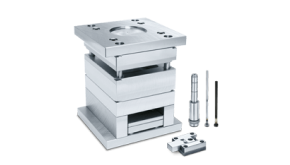
Mould base wizard
To start the mould base wizard, select the desired mould size 1 first. You will also find matching documents 2 in this preliminary step. Click on ‘Start wizard’ 3 to begin assembling your mould base.

In step 1 (‘Mould base’), you define your desired mould base by selecting the fixed half 4, a third cavity plate 5 if you need it, and the moving half 6. If you move the mouse over an image, more information will be displayed 7. On the left side, a graphic showing your current assembly is displayed 8.

In step 2 (‘Mould elements’), the level you are currently working on is indicated in turquoise in the graphic in the upper left corner. Plates you have already selected are marked in grey, while plates you have skipped over stay white. Use the arrows to jump between levels 9. Levels for which you have already completed your selection are marked with a corresponding icon. You can also see which plate you have chosen 10. Below each level, you will find a list of all plates available for the respective level 11. The gallery to the right shows the plate designation as well as a dimensional drawing and a product image 12. If you move your mouse over the turquoise dot in the item table 13, you will see the item availability and the prices as well, if you are logged in 14. Here you can also easily switch between drilled and non-drilled plates 15 and specify the quantity 16. Click on ‘Select and next’ 17 to add the plate to your selection 18. This will also lead you directly to the next level.
The overview page in step 2 is very similar to our product detail pages, so please also refer to our FAQs on this topic.

In step 3 (‘Components’), the wizard displays a list with suitable components automatically calculated based on your selection 19. You can personalise your components and set preferences, e.g. the position of the guide pillars 20. Use the checkboxes to select the components you want to add to your mould base 21, then click on button 22 to do so. Your selected components now show up in the ‘Your selection’ area. Click on button 23 to get to the last step.

In step 4 (‘Summary’), all positions that you have defined for your mould base are listed on the right side 24, while the left side shows a graphic depicting your mould base 25. You can access the 3D model of your mould base by clicking on ‘CAD view’ 26. The model already shows the components you have selected at the correct positions and can be exported via button 27. The mould base can be added to the shopping cart 28 or to a parts list 29. Please also refer to our FAQs on the CAD export, the shopping cart and the parts lists.

Assembling mould bases
Important information as well as our plates catalogue can be found in the listed documents 1. To start assembling, you must first specify the desired mould size 2. You can redefine your selection at any time using button 3. Then click on the ‘Display plates’ button 4.

You are now on the product detail page for the mould base. On the left, you will find a list of all mould elements (e.g. ‘Clamping plate | fixed half’, ‘Backing plate | fixed half’ and so on) for your selected sizes 5.

With the help of the item table, you get an overview of the variants in which your selected product is available. If you move your mouse over the turquoise dot 6, you will see the item availability and the prices as well, if you are logged in 7.

Click on the turquoise dot 8 to select the item. The values are then automatically entered under ‘Define product’ 9. Here you can also switch between drilled and non-drilled versions of the plates.

For some products, there are so many variants that they don’t fit on one page. You can switch between pages using buttons 10. You can also enlarge the table using button 11 so more variants are displayed per page.

Using the filters, you can narrow down the results in the table so that only the dimensions you need are displayed 12.

On the right you will find the ‘Define product’ area 13. With the help of the drop-down lists 14 the desired plates can be defined. The item can then be added to the shopping cart 15 or to a parts list 16. In addition, CAD data can be exported here 17. Please note that you will need to add an item for each mould element to your shopping cart in order to add a complete mould base to your shopping cart.

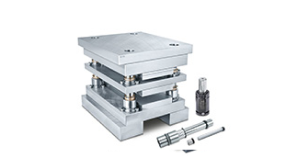
Assembling die sets
Important information as well as our plates catalogue can be found in the listed documents 1. To start assembling, you must first specify the desired size of the die set 2. You also have the option of defining the desired usable area 3. You can redefine your selection at any time using button 4. Then click on the ‘Display plates’ button 5.

You are now on the product detail page for the die set. On the left, you will find a list of all die set elements (e.g. ‘Clamping plate | upper plate’, ‘Pillar/bushes retainer | upper part’ and so on) for your selected sizes 6.

With the help of the item table, you get an overview of the variants in which your selected product is available. If you move your mouse over the turquoise dot 7, you will see the item availability and the prices as well, if you are logged in 8.

Click on the turquoise dot 9 to select the item. The values are then automatically entered under ‘Define product’ 10. Here you can also switch between drilled and non-drilled versions of the plates.

For some products, there are so many variants that they don’t fit on one page. You can switch between pages using buttons 11. You can also enlarge the table using button 12 so more variants are displayed per page.

Using the filters, you can narrow down the results in the table so that only the dimensions you need are displayed 13.

On the right you will find the ‘Define product’ area 14. With the help of the drop-down lists 15 the desired plates can be defined. The item can then be added to the shopping cart 16 or to a parts list 17. In addition, CAD data can be exported here 18. Please note that you will need to add an item for each die set element to your shopping cart in order to add a complete die set to your shopping cart.

Die set wizard
In the new Meusburger portal you will soon also find the familiar die set wizard, with which you can easily put together your die set. Automatic component calculation will also be available again. We will inform you as soon as the function is available.